
How to read a PostgreSQL EXPLAIN plan
The rules behind a PostgreSQL query plan, what to read first, and a real before and after example.
An EXPLAIN plan is PostgreSQL explaining, step by step, how it intends to run a query. It is the most direct evidence you have about a slow query, and it is also the easiest to misread. The output looks dense the first time you see it, but it follows a small number of rules. This guide covers those rules, shows a real plan from start to finish, and lists what to check first.
Two commands, two different things
EXPLAIN shows the plan only. PostgreSQL works out how it would run the query and prints that plan, with estimated costs and row counts. Nothing is executed, so it is safe to run on any query.
EXPLAIN
SELECT * FROM orders WHERE customer_id = 742;
EXPLAIN ANALYZE runs the query and adds what actually happened: the real time and the real row count for each step. This is the one you want when you are chasing a slow query. The estimates tell you what PostgreSQL expected; the actual figures tell you what it got.
EXPLAIN (ANALYZE, BUFFERS)
SELECT * FROM orders WHERE customer_id = 742;
Adding BUFFERS shows how many 8 kB pages each step read from memory (shared hit) and from disk (shared read). It costs nothing extra to include, and it often explains a slow step better than the timings do.
Because EXPLAIN ANALYZE really runs the statement, be careful with INSERT, UPDATE and DELETE. Wrap them in a transaction and roll it back.
Read it from the inside out
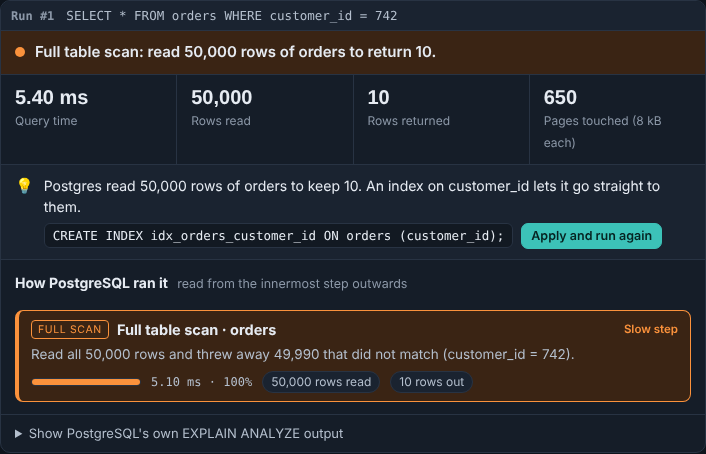
Here is the plan PostgreSQL produced for a simple query on a table of 50,000 orders, from the Query Performance Lab. No index exists on customer_id yet.
Seq Scan on orders  (actual time=0.500..4.900 rows=10 loops=1)
  Filter: (customer_id = 742)
  Rows Removed by Filter: 49990
  Buffers: shared hit=650
Planning Time: 0.300 ms
Execution Time: 4.900 ms
The plan is a tree. Each indented line with an arrow (->) is a step, and the steps nested under it feed rows up to it. Read from the deepest, most indented step outward. In this example there is only one step, so the reading is simple: a sequential scan read the whole table, kept 10 rows, and threw away 49,990.
The numbers that matter are these:
- actual time=0.500..4.900 means the first row arrived after 0.5 ms and the last row after 4.9 ms. The second number is the one to watch.
- rows=10 is the number of rows this step actually produced.
- loops=1 says how many times the step ran. Times and row counts are per loop, so a step that ran 1,000 times has to be multiplied out to get its real cost.
- Rows Removed by Filter is the work that was done for nothing. A large number here, next to a small result, is the usual sign of a missing index.
- Buffers: shared hit=650 is the number of pages read, all from memory in this case. Pages read from disk would show as shared read.
What to read, in order
Plans can be long, so it helps to read them the same way each time. This order finds the important part quickly.
- The totals at the bottom. Execution Time is the real cost of the query. Planning Time is usually small, unless the query is very complex.
- The step with the largest share of the time. Multiply its actual time by its loops, then compare it with the total. That step is where to start.
- Estimated rows against actual rows. The plan shows the estimate as
rows=in the cost part, and the real count asactual rows=. When they are far apart, the planner has been working from bad statistics. RunANALYZEon the table and look again. A very wrong estimate can lead to the wrong join method. - Rows removed by a filter. Lots of rows read and then discarded is wasted effort. An index on the filter column often fixes it.
- Loops. A step inside a nested loop that runs 50,000 times can be the real cost, even if its own time looks small. Look for large
loops=numbers on the inner side of a join. - Buffers. Many shared read pages mean the query went to disk. Run the query twice to see whether the second run is faster, which tells you whether the first run was a cold cache.
- Sort and aggregate lines. A sort marked Disk has spilled out of
work_mem. A large sort in front of aLIMITmeans the whole result was ordered just to return a few rows.
Node types you will see
These are the steps that show up most often. The name tells you how the rows were found.
| Node | What it means |
|---|---|
| Seq Scan | Reads the whole table. Fine for small tables or when most rows are wanted. Expensive when it throws away most of what it reads. |
| Index Scan | Uses an index to find matching rows, then reads each row from the table. Good for a few rows. |
| Index Only Scan | Answers the query from the index alone, without reading the table. Needs the table's visibility map to be up to date, which vacuum maintains. |
| Bitmap Index Scan and Bitmap Heap Scan | Collects the matching positions from the index first, then reads those table pages in order. A middle ground for medium numbers of rows. |
| Nested Loop | For each row on one side, looks up matching rows on the other. Fast when the inner side uses an index, slow when it does not. |
| Hash Join | Builds a hash table from one side and probes it with the other. Good for large joins without a useful index. |
| Merge Join | Joins two inputs that are already sorted on the join key. |
| Sort | Orders rows. Check the sort method: quicksort means it fit in memory, external merge Disk means it did not. |
| Aggregate, HashAggregate, GroupAggregate | Computes counts, sums and groups. A HashAggregate on many groups can use a lot of memory. |
| Limit | Stops early after the requested number of rows. Its cost depends on the node beneath it, so look there. |
A before and after example
Using the same query, the lab built an index on customer_id and ran it again. Both runs are shown below, from the lab's own output.
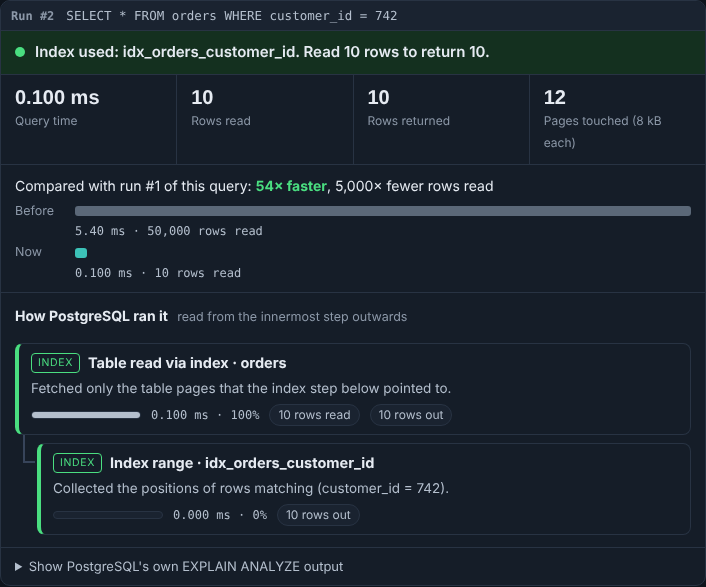
The plan after the index shows a different tree:
Bitmap Heap Scan on orders  (actual time=0.000..0.000 rows=10 loops=1)
  Recheck Cond: (customer_id = 742)
  Heap Blocks: exact=10
  Buffers: shared hit=12
  ->  Bitmap Index Scan on idx_orders_customer_id  (actual time=0.000..0.000 rows=10 loops=1)
        Index Cond: (customer_id = 742)
        Buffers: shared hit=2
Planning Time: 0.300 ms
Execution Time: 0.100 ms
Read it from the inside out. The Bitmap Index Scan is the deepest step. It uses the index to find the 10 matching positions, reading 2 index pages. The Bitmap Heap Scan above it reads the 10 table pages that hold those rows. Buffer reads drop from 650 pages to 12, and execution time drops from 4.9 ms to 0.1 ms.
Notice what to compare. The buffer count and the actual times are the reliable figures. Estimated costs are useful for PostgreSQL's planning decisions, but they are not milliseconds, and they can differ between machines and versions, so do not compare them across environments.
Common mistakes when reading plans
- Reading only the top line. The top node reports the total, but the cause is often a step deeper down.
- Ignoring loops. A step that looks cheap at 0.02 ms per loop costs 20 seconds if it runs a million times.
- Trusting a small test table. On a few hundred rows PostgreSQL may choose a sequential scan even when an index exists, because reading the whole table is genuinely cheaper. Test with data close to your real volume.
- Comparing one cold run with one warm run. The first execution often reads from disk, and the next reads from cache. Run the query two or three times and compare the buffers.
- Forgetting that estimates can be wrong. When the estimated and actual row counts differ a lot, the plan is based on bad information. Fix the statistics before you tune anything else.
A short checklist
- Run
EXPLAIN (ANALYZE, BUFFERS)on the query, with the same parameters the application uses. - Read the execution time and find the step with the largest share.
- Check estimated against actual rows on that step and its neighbours.
- Look at rows removed by filters, loops and buffer reads.
- Change one thing, then run the plan again and compare.
Try it yourself
You can practise reading plans in the browser without a server. The PostgreSQL Playground runs PostgreSQL 16 with sample orders, so you can write a query, run EXPLAIN (ANALYZE, BUFFERS), and see the plan for your own statement. The PostgreSQL Query Performance Lab draws the same kind of plan step by step, and lets you apply an index and compare the two runs, as in the example above. For the wider process of finding a slow query, the guide to PostgreSQL performance debugging covers the steps before the plan.
All log analysis tools · All guides
Questions
What is the difference between EXPLAIN and EXPLAIN ANALYZE?
EXPLAIN shows the plan PostgreSQL would use, with estimates, and does not run the query. EXPLAIN ANALYZE runs the query and adds the real time and row count for each step.
Is EXPLAIN ANALYZE safe on production?
It runs the statement, so for a SELECT it only costs the time of that query. For an UPDATE or DELETE, wrap it in a transaction and roll it back. Test on a copy when you can.