
Blur faces in a photo without uploading it
Before you post a group photo, share a screenshot or send a picture from an event, you may need to hide the people in it who did not agree to be shown. This free online tool finds the faces for you, covers each one, and gives you the edited photo back. It is private by design: the whole process runs inside your browser, so the picture is never sent to a server. There is no sign-up, no watermark and no limit on the number of photos.
How to blur a face
- Choose a photo. Drop it on the page, pick it from your device or paste it from the clipboard.
- Check the result. Every face that was found is already covered. Click a face to show it again, for example your own.
- Fix anything that was missed. Press Find smaller faces for crowds and distant people, or draw a box over anything else you want hidden.
- Download. The edited photo is saved to your device in its original size.
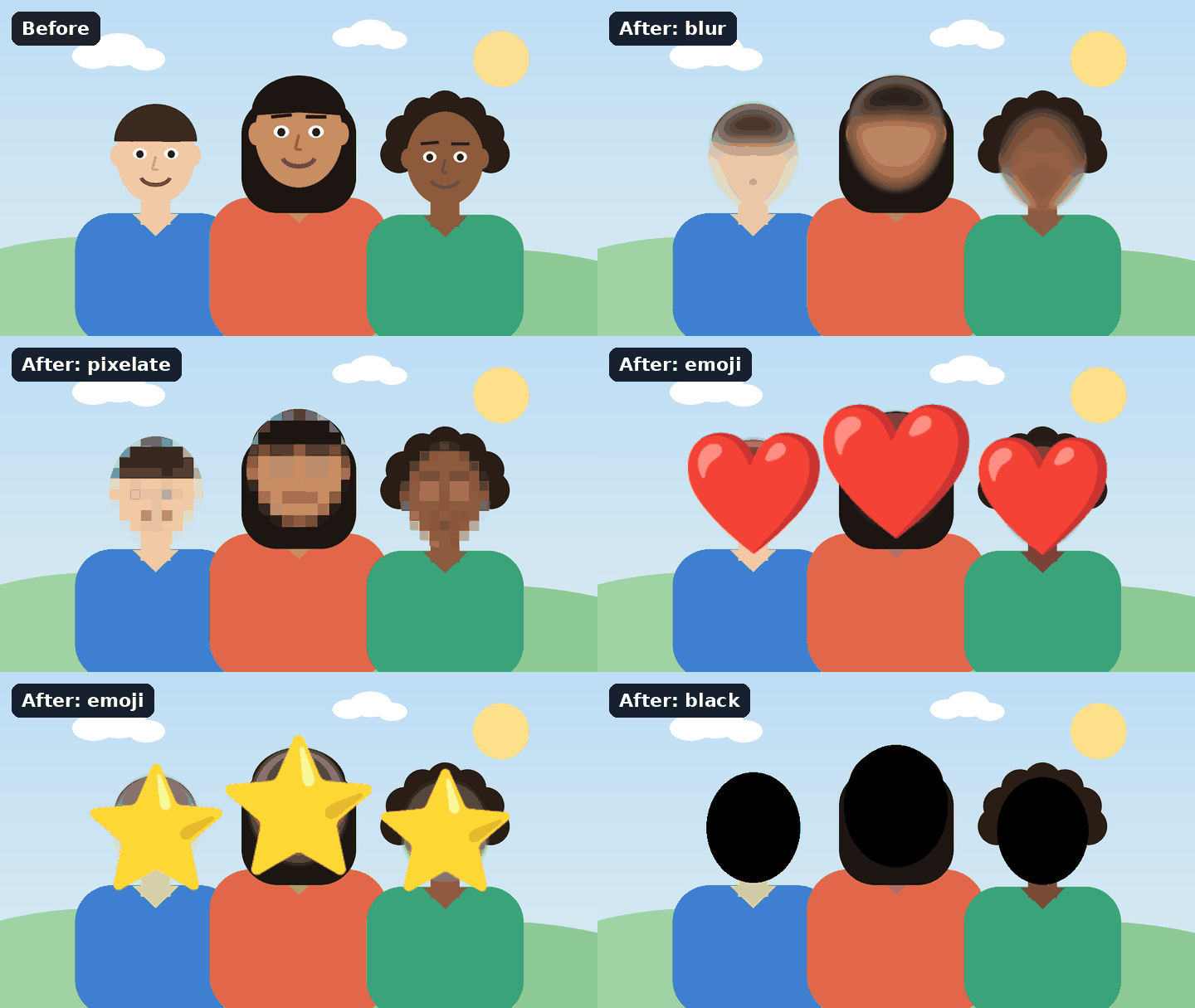
Blur, pixelate, emoji or black box: which should you use?
| Style | Looks like | Use it when |
|---|---|---|
| Blur | A soft, smooth smudge over the face | You want the photo to still look natural, as on social media. |
| Pixelate | Large square blocks | You want it to be obvious that someone was hidden on purpose. |
| Emoji | A heart, star or smiley over each face | Family and friends photos, where you want to hide a child or a friend in a light-hearted way. |
| Black | A solid shape | The identity must not be recoverable: legal documents, reports, children, witnesses. |
A light blur or small pixel blocks can leave enough detail for someone who knows the person to recognise them, and software can sometimes sharpen a weak blur. For anything sensitive, raise the strength or use the black style, which removes the pixels completely.
Cover a face with an emoji
Choose Emoji and pick a heart ❤️, a sparkling heart 💖, a star ⭐ or one of the other stickers. The emoji is sized to each face and placed over it, and the face underneath is blurred as well, so nothing shows around the edges. This is the style many parents use to share a photo while keeping a child's face private. Click any face to remove its emoji and show it again.
How to blur a face on iPhone or Android
- Open this page in Safari or Chrome on your phone. There is no app to install.
- Tap Choose photo and pick a picture from your photo library, or take a new one.
- Faces are covered automatically. Tap a face to show it again. To hide something else, tap Draw a box, then drag over it.
- Tap Download. On iPhone the picture goes to Files, in the Downloads folder; open it and use Share, then Save Image, to add it to Photos. On Android it appears in Downloads and in your gallery.
Who uses a face blur tool?
- Parents sharing school and birthday photos without showing other people's children.
- Teachers and schools publishing class or event photos where not every family has given permission.
- Journalists and researchers protecting sources, bystanders and people in protests or crowds.
- Sellers and estate agents removing passers-by and number plates from listing photos.
- Companies posting office and event pictures while respecting employees who prefer not to appear.
Privacy rules such as the GDPR treat a recognisable face as personal data. Hiding faces before you publish is a simple way to reduce that risk, although it is not legal advice and the rules depend on where and how the photo is used.
What else to hide before sharing
A face is not the only thing that identifies someone. Look for name badges, car number plates, house numbers, school uniforms, tattoos, and screens or papers in the background. Use Draw a box to cover any of these. If the picture contains text such as emails or phone numbers, the Image PII Finder can locate it for you.
Photos also carry hidden details: the time, the camera and often the exact location where the picture was taken. The file you download from this page is a new image without any of that data.
How the automatic detection works
Faces are found on your own device. Both close-up portraits and small faces at the back of a group are picked up. Nothing about the faces is stored or compared with anyone: the tool finds where faces are, not whose they are.
Face detection is based on the YuNet model from the OpenCV Zoo, used under the MIT License.
Limits
- Faces turned far to the side, heavily covered, very small or in poor light can be missed. Always check the result before sharing.
- Photos larger than 16 megapixels are reduced to that size.
- It works on still images. Video is not supported.
Questions
Is this face blur tool free?
Yes. It is free to use online, with no sign-up, no watermark and no limit on the number of photos.
Can I put an emoji over a face?
Yes. Choose the Emoji style and pick a heart, star, smiley or another sticker. It is placed over every face that was found, and the face underneath is blurred too.
Is my photo uploaded?
No. The photo is opened, checked and edited inside your browser. It is never sent to a server, and nothing is stored after you close the page.
How do I blur just one face in a group photo?
All faces are covered at first. Click each face you want to keep visible and it is shown again, leaving only the others hidden.
Can I blur something that is not a face?
Yes. Press Draw a box and drag over a number plate, name badge, screen or anything else. It is hidden in the same style as the faces.
Can a blurred face be un-blurred?
A strong blur or large pixel blocks cannot be reversed in practice, but a light blur can leave recognisable detail. If the identity must stay hidden, use the Black style, which replaces the pixels entirely.
Why was a face missed?
Faces in profile, partly covered, very small or badly lit are harder to detect. Try Find smaller faces, and draw a box over any that are still visible.
Does the downloaded photo keep its quality?
Yes. The photo is saved at its original size. PNG files stay PNG; other formats are saved as high-quality JPG.
Does it remove location data from the photo?
Yes. The downloaded file is a new image and does not contain the location, camera or time details stored in the original.
Can I blur several faces at once?
Yes. Every face in the photo is found and covered in one step, including large groups. Use Find smaller faces for crowds.
Can it blur faces in a video?
No. This tool works on photos. For a video, export the frame you need as an image first.
Does it recognise who is in the photo?
No. It only finds where faces are so they can be covered. It does not identify people or compare faces with anything.
Does it work on a phone?
Yes. It works in current versions of Chrome, Safari, Firefox and Edge on phones and computers. On a phone, tap Draw a box before dragging on the photo.